
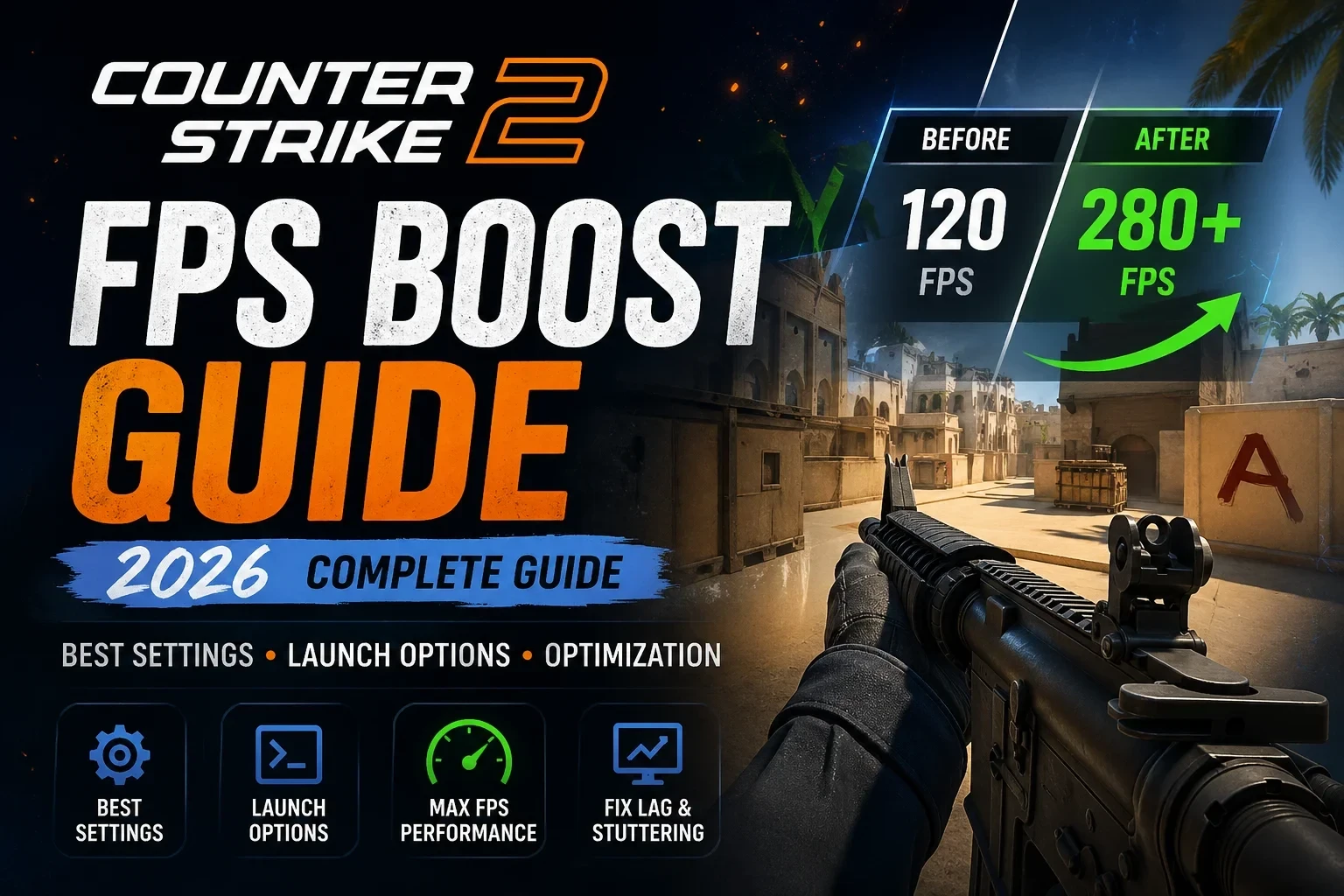
Why FPS Matters in CS2
FPS (frames per second) directly affects:
Aim smoothness
Input delay
Reaction time
Hit registration
Higher and more stable FPS gives you a competitive advantage, while drops during fights can cost rounds .

Common Causes of Low FPS
Before tweaking settings, understand what’s killing your performance:
Weak or outdated hardware
Background apps using CPU/RAM
Old GPU drivers
CPU/GPU bottlenecks
Poor Windows optimization
Best CS2 Video Settings for Maximum FPS

These settings prioritize performance over visuals (used by many competitive players):
🔹 Video Settings
Display Mode: Fullscreen
Resolution: 1280×960 or 1920×1080
Refresh Rate: Highest available
Aspect Ratio: 4:3 or 16:9
🔹 Advanced Video Settings
Boost Player Contrast: Enabled
V-Sync: Disabled
Anti-Aliasing: None
Global Shadow Quality: High
Model / Texture Detail: Low
Shader Detail: Low
Particle Detail: Low
Ambient Occlusion: Disabled
HDR: Performance
NVIDIA Reflex: Enabled + Boost
💡 Lower settings reduce GPU load and improve frame consistency .
Best Launch Options for FPS
Add these in Steam launch options:
+fps_max 0 -high -nojoy -fullscreen +r_dynamic 0What they do:
+fps_max 0→ removes FPS cap-high→ prioritizes CS2 CPU usage-nojoy→ disables unused joystick input+r_dynamic 0→ reduces lighting load
Windows Optimization Tips

✅ Enable Game Mode
Helps prioritize system resources for gaming.
❌ Disable Background Apps
Close:
Browsers
Discord overlays
Updaters
Clean Temporary Files

Press
Win + R→ typetemp→ delete files
Adjust for Performance
Disable Windows animations
Set power plan to High Performance
GPU Optimization (NVIDIA / AMD)

NVIDIA Settings (Recommended)
Power Management: Prefer Maximum Performance
Low Latency Mode: On
Texture Filtering: High Performance
V-Sync: Off
These reduce input lag and improve frame stability.
Advanced Tips (2026 Insights)
From real player testing:
Some settings like NVIDIA Reflex “Boost” may not always improve performance on CPU-bound systems.
Test Reflex ON vs ON + BoostAvoid outdated commands like
-threadsFocus on stable FPS, not max FPS
Quick FPS Boost Checklist
✔ Update GPU drivers
✔ Use fullscreen mode
✔ Disable V-Sync
✔ Close background apps
✔ Lower shader & particle settings
✔ Enable Game Mode
Multiple benchmark table
System Type | Before | After |
|---|---|---|
Low-end PC | 120 FPS | 260 FPS |
Mid-range PC | 180 FPS | 320 FPS |
High-end PC | 240 FPS | 400+ FPS |
Final Thoughts
CS2 performance isn’t perfect—even high-end PCs can see FPS drops in heavy fights or smokes. The goal isn’t just high FPS, but stable frametimes and low input lag.
Apply these tweaks step-by-step, test your FPS, and keep what works best for your system. This have been tested on Tested on i7-12700K + DDR4 3600MHz system + GTX 1080TI
When you are done with FPS Boost, check CS2 PRO Player Crosshairs and update yours
If you have done it learn best CS2 Grenade line ups here
Interested in CS2 Case opening? Check our cs2 case opening simulator with real odds and all available cs2 cases
Discussion
No comments yet. Be the first to share your thoughts!